OTA Updates
Update firmware over WiFi without a USB cable.
Check for Updates (Recommended)
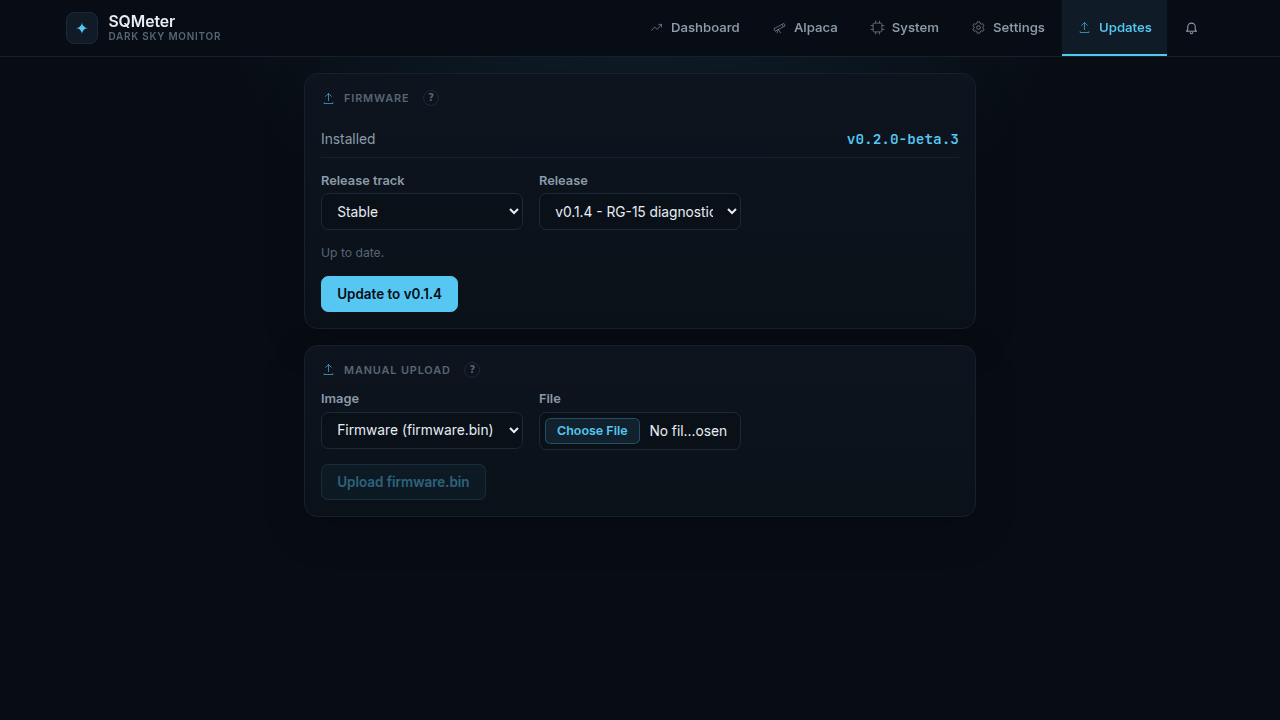
The Updates page can check GitHub Releases directly and update the device itself - no downloading or uploading required.
- Open the web UI and go to Updates
- Under Firmware, pick a Release track:
- Stable - tagged releases (
prerelease: falseon GitHub) - Beta - pre-release builds (
prerelease: trueon GitHub)
- Stable - tagged releases (
- Pick a specific release from the dropdown (defaults to the newest on the selected track) - a badge shows whether it's newer than the running firmware
- Click Update to
<tag>
The device downloads sqmeter-firmware-<tag>.bin and sqmeter-littlefs-<tag>.bin directly from api.github.com over HTTPS and flashes both before rebooting - firmware and web UI are always updated together as a matched pair, so they never drift out of sync with each other. A release only appears in the list if both assets exist for it. On the Bluetooth build the device fetches sqmeter-ble-firmware-<tag>.bin instead, so it stays on the Bluetooth build.
Progress and errors are pushed to the page over the status WebSocket; if the connection to GitHub fails partway through (no internet, DNS, etc.), the device aborts cleanly and keeps running exactly what it was running before - see How self-update failure handling works below.
TLS
The device validates GitHub's certificate chain against two pinned root CAs (covering api.github.com and the release-asset CDN) rather than trusting any certificate - it will refuse to update if GitHub's certificate doesn't chain to one of them.
Via Web UI (Manual Upload)
- Download
sqmeter-firmware-vX.Y.Z.binfrom GitHub Releases - Open the web UI and go to Updates
- Under Manual upload, choose Firmware as the image and select the
.binfile - Click Upload
- The device reboots automatically into the new firmware
Don't interrupt
Keep the browser open during upload. A power cut mid-flash can corrupt the active partition — the device will fall back to the previous app slot on next boot.
Web UI updates
To update the web UI (the dashboard/settings pages), upload sqmeter-littlefs-vX.Y.Z.bin under Manual upload with Web UI (littlefs.bin) as the image, or use esptool directly. The web UI update doesn't touch the firmware.
Security
Updates are open to anyone who can reach the web UI unless Settings → Device → Security → Password-protect changes is on. Even then the login is plain HTTP: keep the device on a trusted network and don't expose it through port forwarding.
API Endpoints
The Updates page uses these endpoints:
| Endpoint | Purpose | Artifact |
|---|---|---|
GET /api/updates/check?track=stable\|beta |
List GitHub releases with a matched firmware+filesystem asset pair, filtered by track | - |
POST /api/updates/apply |
Self-download and flash a specific release. Body: {"firmwareAssetUrl","firmwareAssetSize","fsAssetUrl","fsAssetSize"} (from a check response entry) |
fetched from GitHub |
POST /api/update |
Manual firmware upload | sqmeter-firmware-vX.Y.Z.bin |
POST /api/update/fs |
Manual LittleFS/web UI upload | sqmeter-littlefs-vX.Y.Z.bin |
Both upload endpoints take multipart/form-data and return 200 {"success": true} or 500 {"error": "..."}. The firmware endpoint reboots automatically after a successful upload.
Version Numbers
The badge on the Updates page compares the running version with each release using semantic-version order: 0.2.0-beta.1 < 0.2.0-beta.2 < 0.2.0. Release builds report their tag (without the v). A build you compile yourself reports the latest release plus +dev (for example 0.2.0-beta.1+dev), which counts as that release - so newer releases show as updates and older ones don't.
Via ArduinoOTA
Command-line ArduinoOTA is disabled by default. To enable it, set both fields below in the device configuration and restart:
Use the same password from your upload tool. If ota.enabled is false or ota.password is empty, the device will not start the ArduinoOTA listener.
Via esptool (USB)
If the device is unresponsive over WiFi, fall back to USB:
# Firmware only
esptool.py --chip esp32 --port PORT --baud 115200 \
  write_flash 0x10000 sqmeter-firmware-vX.Y.Z.bin

# Full reflash (nuclear option)
esptool.py --chip esp32 --port PORT --baud 115200 \
  write_flash 0x0 sqmeter-complete-flash-vX.Y.Z.bin
How OTA Works
The partition table has two app slots (app0 at 0x10000, app1 at 0x190000). OTA writes the new firmware to the inactive slot, then updates the otadata partition to point the bootloader at it on next boot. If the new firmware fails to boot, the bootloader stays on the old slot.
This means you always have a working rollback as long as you don't erase the flash.
The LittleFS filesystem update is separate from app OTA slots. It replaces the dashboard/settings assets and preserves NVS configuration, but an interrupted filesystem upload can leave the web UI unavailable until LittleFS is flashed again over USB or a later successful OTA filesystem upload.
How Self-Update Failure Handling Works
POST /api/updates/apply flashes the filesystem first, then the firmware, and only reboots once both have succeeded - deliberately the reverse of upload order, because writing the new firmware is the one irreversible step (it flips the boot partition the instant it succeeds). If the device loses connectivity or power at any point:
- Before the firmware write starts (checking, or mid-filesystem-download): nothing has changed that affects what boots next time. The device keeps running exactly what it was running before.
- During the firmware write: the write is aborted and the boot partition is left untouched, same as above.
- After the firmware write succeeds but before reboot: this can't happen in practice - the reboot is triggered immediately after the firmware write completes, with no further network calls in between.
In all cases config (WiFi, calibration, thresholds) is untouched, since it lives entirely in NVS, a separate partition from both app0/app1 and the LittleFS filesystem.
One known, pre-existing limitation shared with the manual filesystem-upload endpoint: the filesystem partition is erased before being rewritten, so a connection drop specifically during the filesystem write (not before, not after) leaves LittleFS corrupted until a later successful update repairs it. The REST API and OTA endpoints stay reachable either way - only the served dashboard/settings pages would be affected until then.